
CNC Coordinate Systems: Machine Zero and Work Zero
Explain Machine Zero and Work Zero with a safe, hardware-neutral mental model.
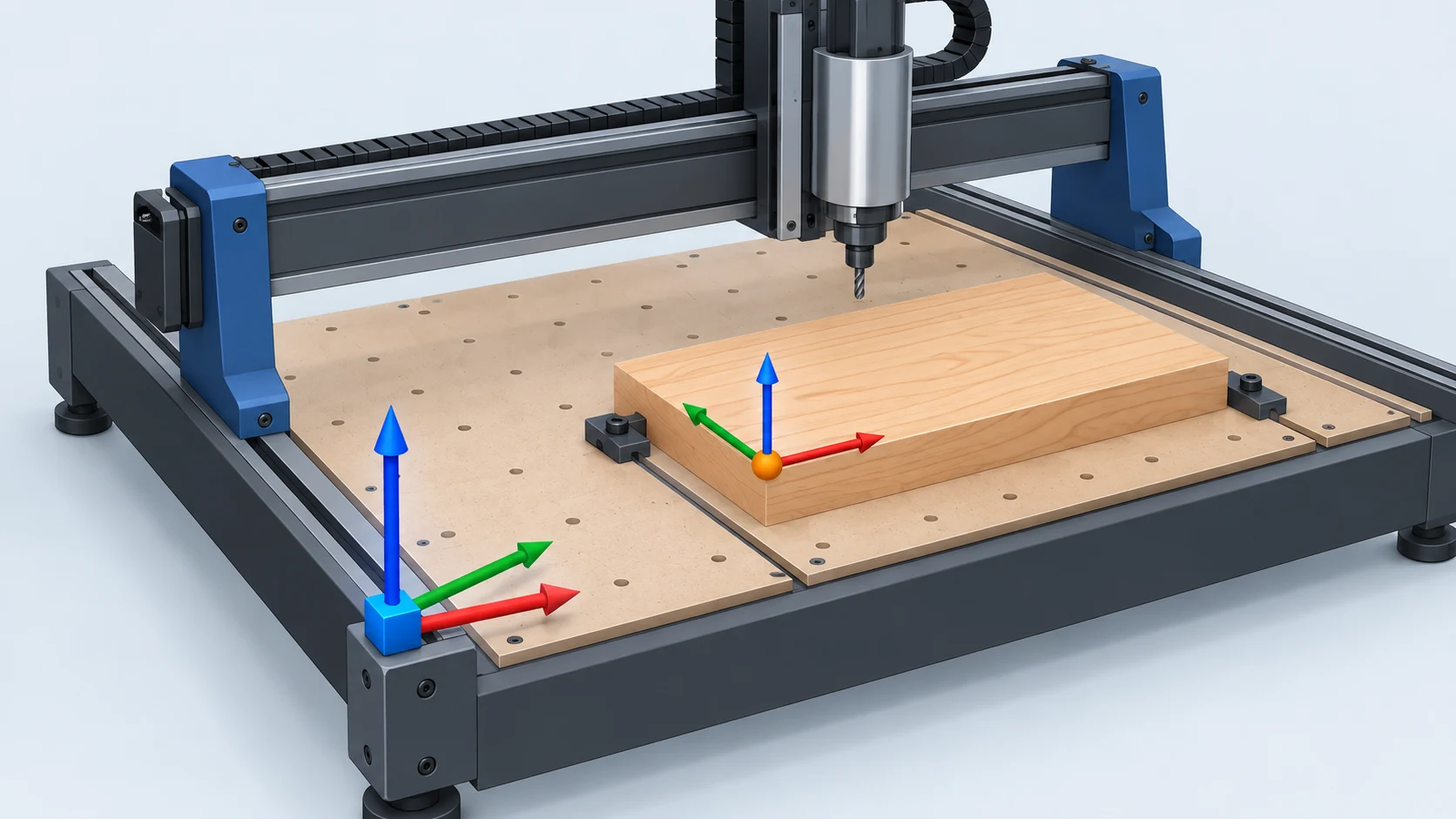
Table of Contents▼
Two CNC jobs can use the same machine and still need different origins. The stock may be clamped in a new place, the design may start from another corner, or a project may use several origins. Understanding the difference between a machine reference and a work origin makes those setup choices easier to discuss and check.
This guide uses Machine Zero as a plain-language name for the machine reference established by a homing procedure, and Work Zero for the origin selected for a particular stock setup or job. Controllers and CAM programs do not all use the same labels or procedures. Treat the distinction as a mental model, then confirm the exact terms and controls in the documentation for your machine and controller.
The short version
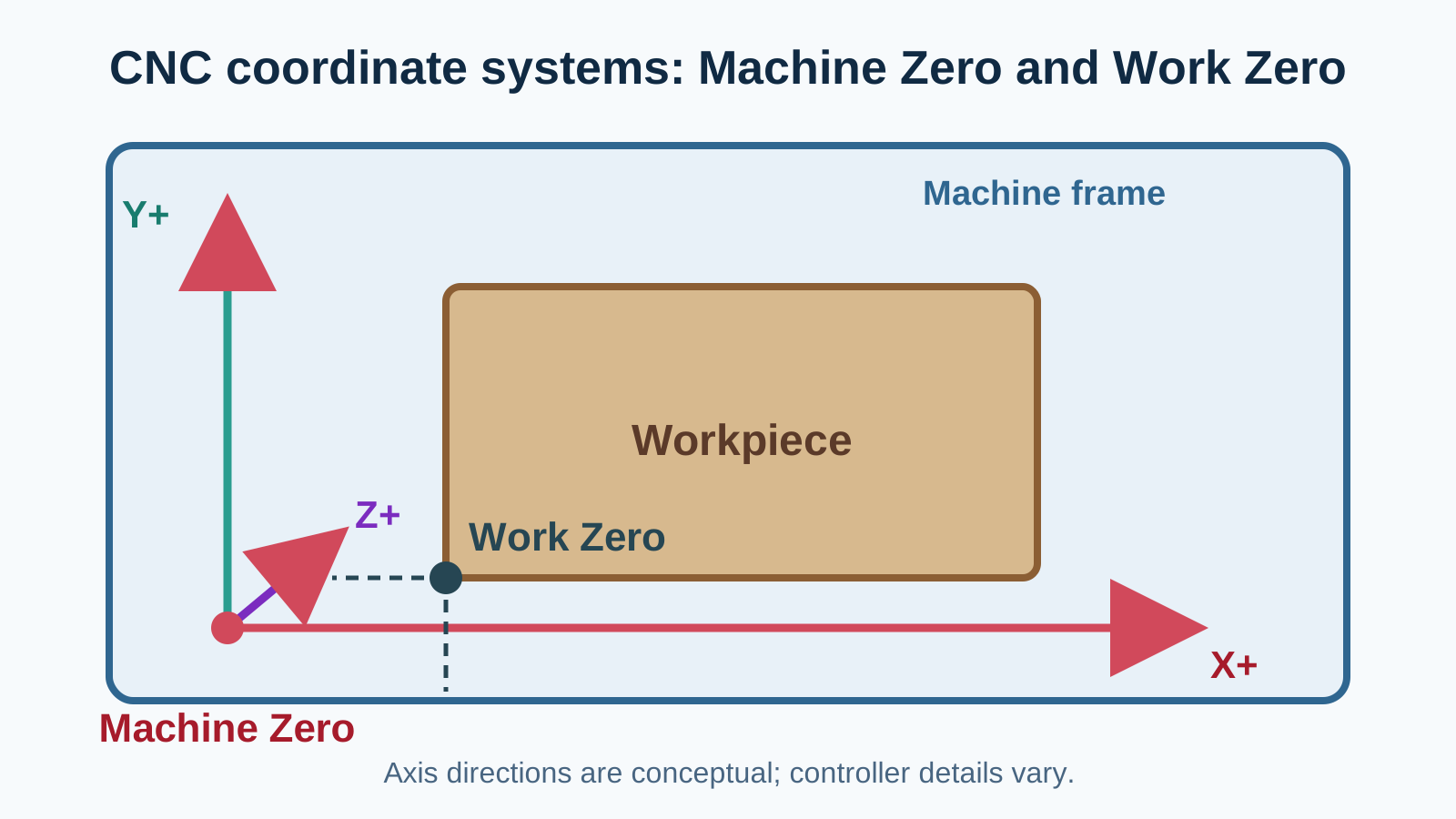
Machine Zero answers: “Where is the machine's reference?” A homing process can establish a repeatable reference for the machine. Its location and implementation depend on the machine and controller.
Work Zero answers: “Where does this job's coordinate origin sit?” It is associated with the stock, fixture, or work setup that the toolpath expects. A CAM workflow can let you choose an origin on the stock; that choice has to match how the work is set up on the machine.
These are related references, but they do not have to be the same physical point. Think of Machine Zero as the machine's frame of reference and Work Zero as the job's frame of reference. The important practical question is whether the origin assumed by the toolpath agrees with the origin you set for the work.
Why two origins help
A machine reference can help the controller know where the machine is within its own travel. A work origin gives a design a useful starting point on a particular piece of stock. Keeping these roles separate lets a job use the same design even when the stock is not clamped at one special corner of the machine.
For example, a CAM program might place its origin at a corner of the stock. The operator then uses the controller's supported setup method to align that point with the physical stock. Another project might use a different stock origin, or use more than one origin for separate operations. The coordinate-system feature described in Makera CAM's material is one vendor example: it allows origin points to be selected for stock and describes multiple origins for separate jobs in a project. That is a capability of that workflow, not a promise that every controller handles multiple origins in the same way.
An Easel carving walkthrough provides a different vendor example. Its described setup homes the machine, then asks the user to set a work-zero position. The walkthrough associates the lower-left corner of the material with the black origin point in its work area. This illustrates how a CAM interface can connect its drawing origin to a physical setup; it should not be treated as the required origin for every machine or every job.
A setup conversation that avoids confusion
Before a job, identify the origin in the CAM project. Is the drawing measured from a stock corner, a center point, a fixture feature, or another location? Then find the matching point on the real setup. If those two choices differ, the toolpath can be offset from the stock even when the machine itself has homed correctly.
Next, determine what the machine's controller expects. Some workflows ask the user to home the machine; some describe setting a work zero afterward; some include probing or controller-specific coordinate offsets. The Easel walkthrough is an example of a workflow that separates those instructions: it recommends homing before a carve and includes a checklist item for setting work zero. Use your own controller's manual for the actual sequence and names.
Finally, verify the relationship between the tool, the stock, and the selected origin before running a cutting move. The source workflow asks the operator to confirm that the material is secure and that the bit is at the intended corner for its generated toolpath. These are useful reminders to match the software setup to the physical setup; other machines may have different preflight checks.
Work Zero is a choice tied to the job
There is no single stock point that every project must use. A corner can be convenient when the design is dimensioned from an edge. A center origin can be convenient for some designs or fixtures. The right choice is the one used consistently by the CAM design, setup instructions, and controller workflow.
The key is not which point looks most natural on screen. It is that the selected point on the model corresponds to the point the machine treats as the work origin. When a CAM program supports multiple work coordinate systems, each origin needs a clear physical meaning and a deliberate selection. Makera's tutorial describes multiple stock origins as useful for separate jobs in one project; that example also shows why naming or recording each origin matters to the operator.
Do not confuse units with origins
Units and origins are separate setup details. A file can use an origin correctly while still being interpreted in the wrong unit system. Easel's G-code specification asks its workflow to include either G20 or G21 to make the unit system explicit. Those commands concern inch or millimeter interpretation in that G-code context; they do not choose the physical Work Zero point.
Coordinate-system commands also vary by controller. For example, an Easel help article describing GRBL error messages lists G59.1, G59.2, and G59.3 work coordinate systems as unsupported in the documented setup. Do not copy an offset command from an online example into a different machine's program without checking whether that controller supports it and what that command means there.
Common signs that the references do not match
- The CAM origin is shown at one stock corner, but the physical setup uses another point.
- A work origin was selected for one setup and then the stock or fixture was moved.
- A program uses a controller coordinate-system command that the current controller does not support.
- The file's unit mode is unclear, even though the origin itself appears correct.
- The operator can describe where the bit is, but cannot say which origin the CAM file expects.
These are prompts to stop and re-check the setup, not diagnostic proof of one particular error. Controller messages, machine state, and toolpath preview should be reviewed using the manufacturer's procedure.
A beginner's checklist
- Name the origin in the CAM project. Write down the stock point the toolpath uses.
- Check the controller's reference procedure. Home or establish the machine reference only as documented for that machine.
- Set up the work origin using the documented workflow. Confirm what the controller calls it and which coordinate system is active.
- Match the software point to the stock point. A visual preview and physical setup should describe the same corner, center, fixture, or other origin.
- Check units and controller commands separately. An origin choice does not select inches or millimeters, and supported offsets vary.
- Inspect before cutting. Confirm stock position, tool position, and the intended origin with the controller's safe verification steps.
The checklist is intentionally hardware-neutral. It helps you ask the right questions without replacing a machine-specific homing, probing, or safety procedure.
Keep the distinction simple
When someone says “zero the CNC,” ask which reference they mean. Are they establishing the machine reference, or setting the origin for the current work? That short question can clarify an instruction before it turns into a coordinate error.
Machine Zero and Work Zero are useful terms for two different roles in a setup. A machine reference supports locating the machine; a work origin connects the design to the stock or job. The exact mechanism belongs to the controller and CAM workflow you are using. Keep those roles separate, check their relationship, and treat vendor examples as examples rather than universal instructions.