Importing
Updated 2026-01-09
Importing G-code
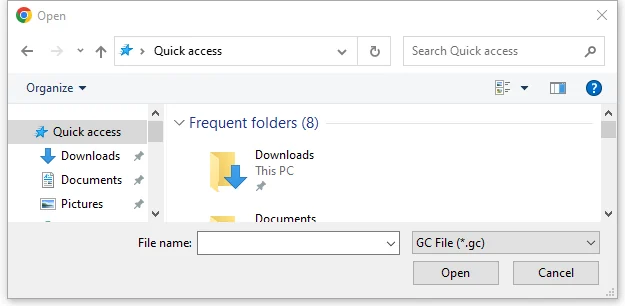
- G-code Files: Supports
.gcand.gcodefile formats
Importing Vector
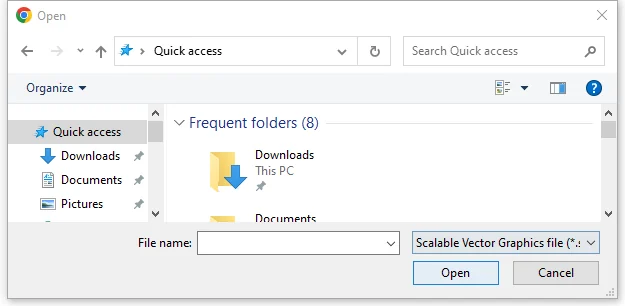
- SVG Files: Supports
.svgfile format
Importing STL
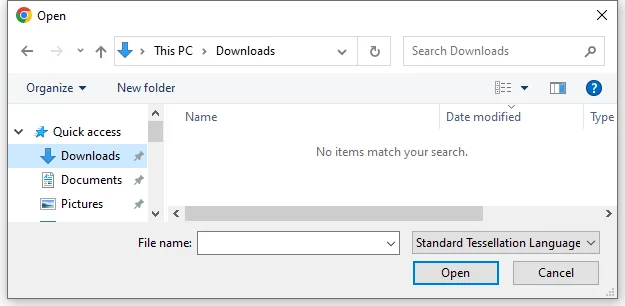
- STL Files: Supports
.stlfile format
- Set engraving parameters after import
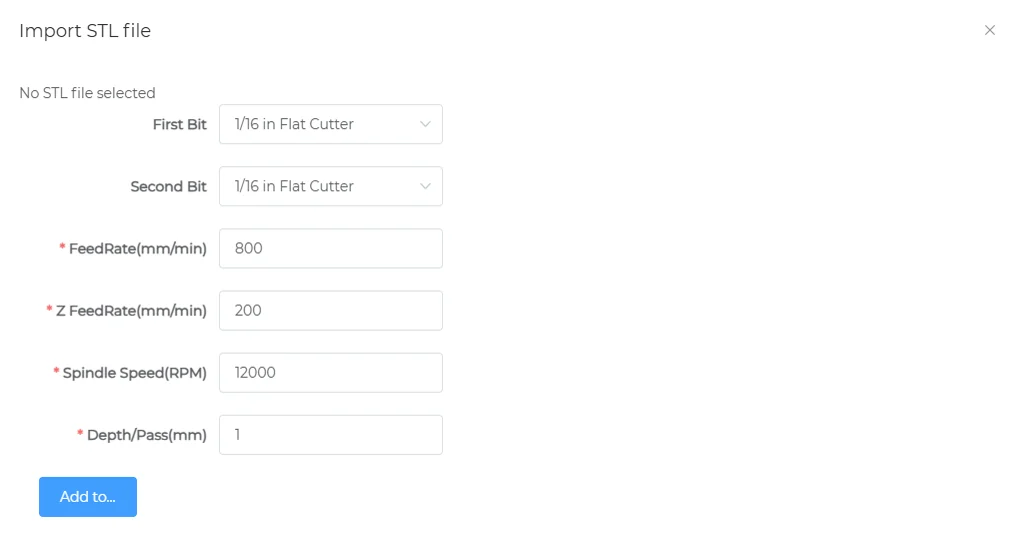
Image to Vector
Import
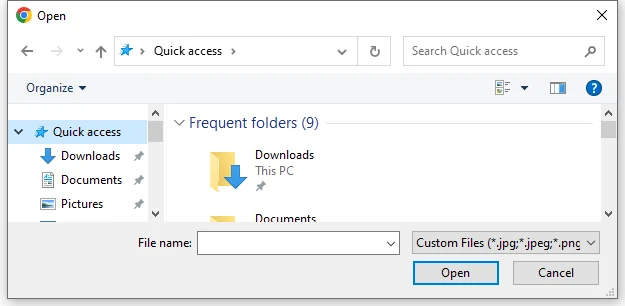
- Image Files: Supports
.jpeg,.jpg,.png,.bmp
Effect Adjustment
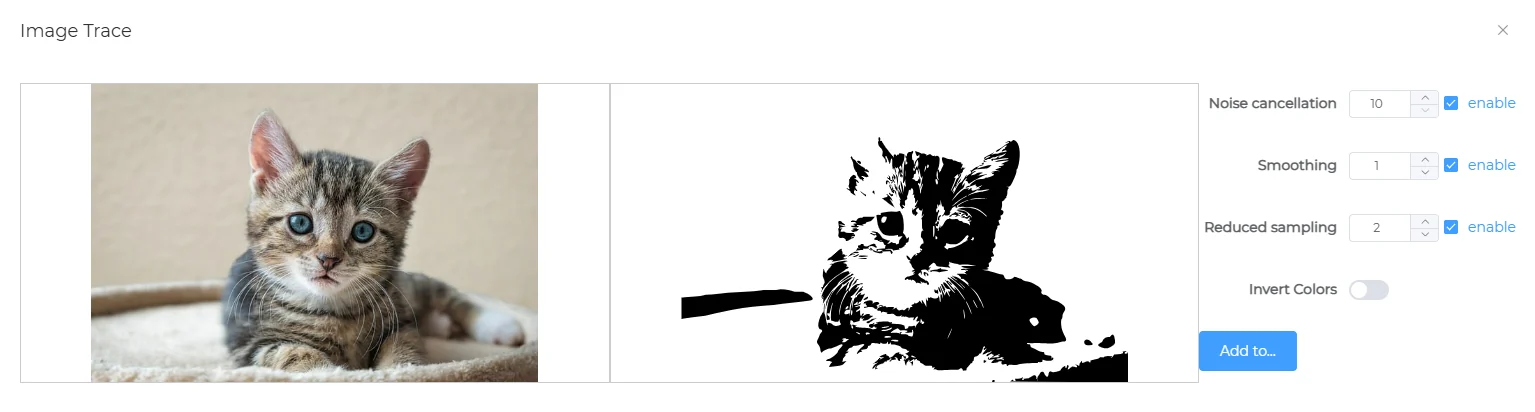
Image Laser Engraving
Import
- Image Files: Supports
.jpeg,.jpg,.png,.bmp
Effect Adjustment
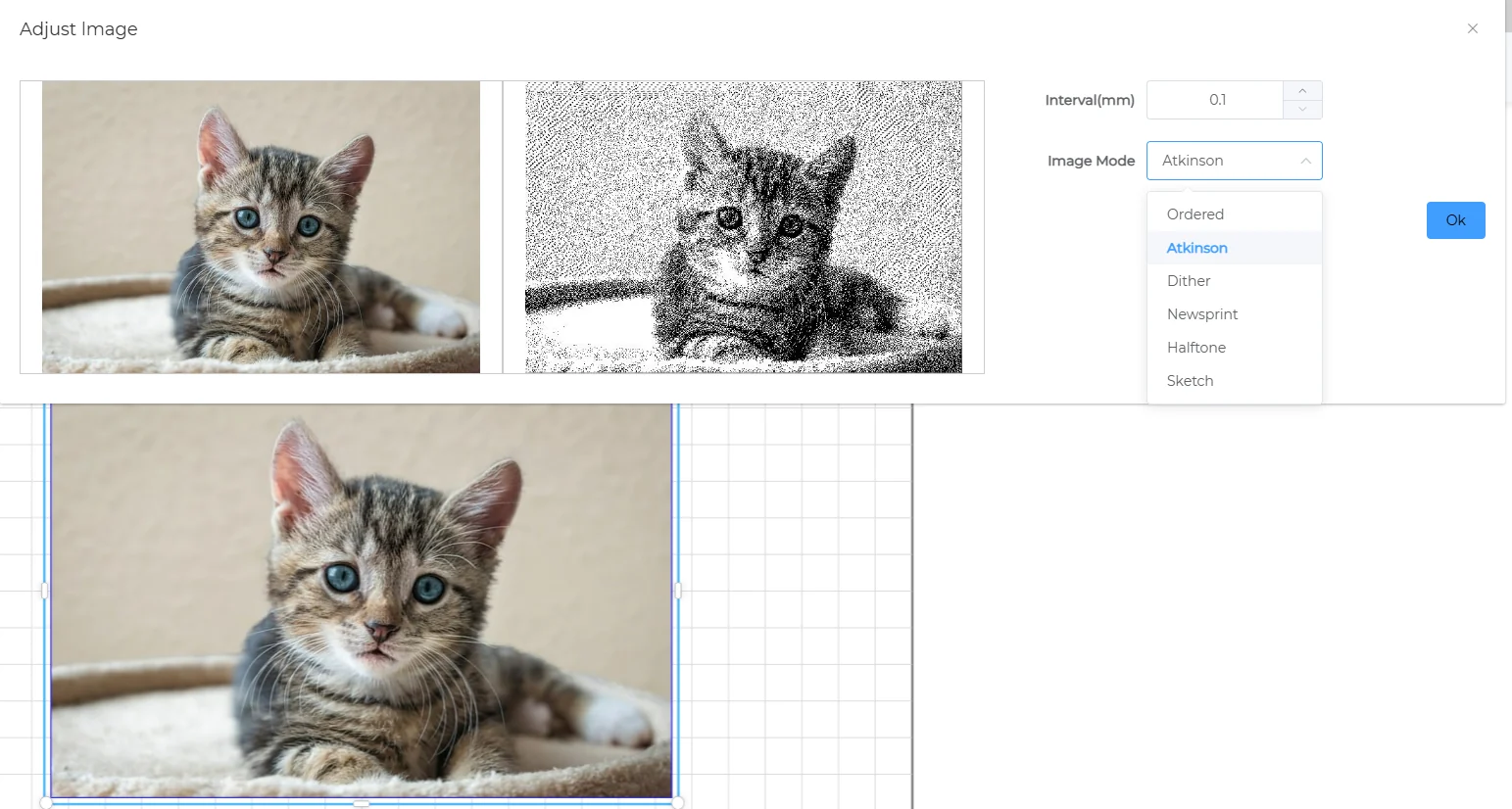
Interval
- Adjust line spacing
Image Mode
| Name | Type | Image Characteristics | Advantages | Disadvantages | Recommended Use |
|---|---|---|---|---|---|
| Ordered | Fixed Matrix | Regular grid pattern | Fast and stable | Visible texture | Quick preview, printing |
| Atkinson | Error Diffusion | Soft and bright | Clear edges, good brightness | Slightly less tonal range | Ideal for laser engraving |
| Dither | Error Diffusion | Natural and fine detail | High fidelity | Slightly dark | High-quality engraving |
| Newsprint | Simulated Printing | Dot pattern | Strong artistic style | Loss of detail | Print-style effects |
| Halftone | Simulated Printing | Geometric halftone dots | Unique artistic style | Lower precision | Artistic images |
| Sketch | Stylized | Prominent lines | Clear shapes | Limited grayscale | Outline engraving, sketch style |
Image Relief Carving
Import
- Image to STL: Supports
.jpeg,.jpg,.png,.bmp
Effect Adjustment
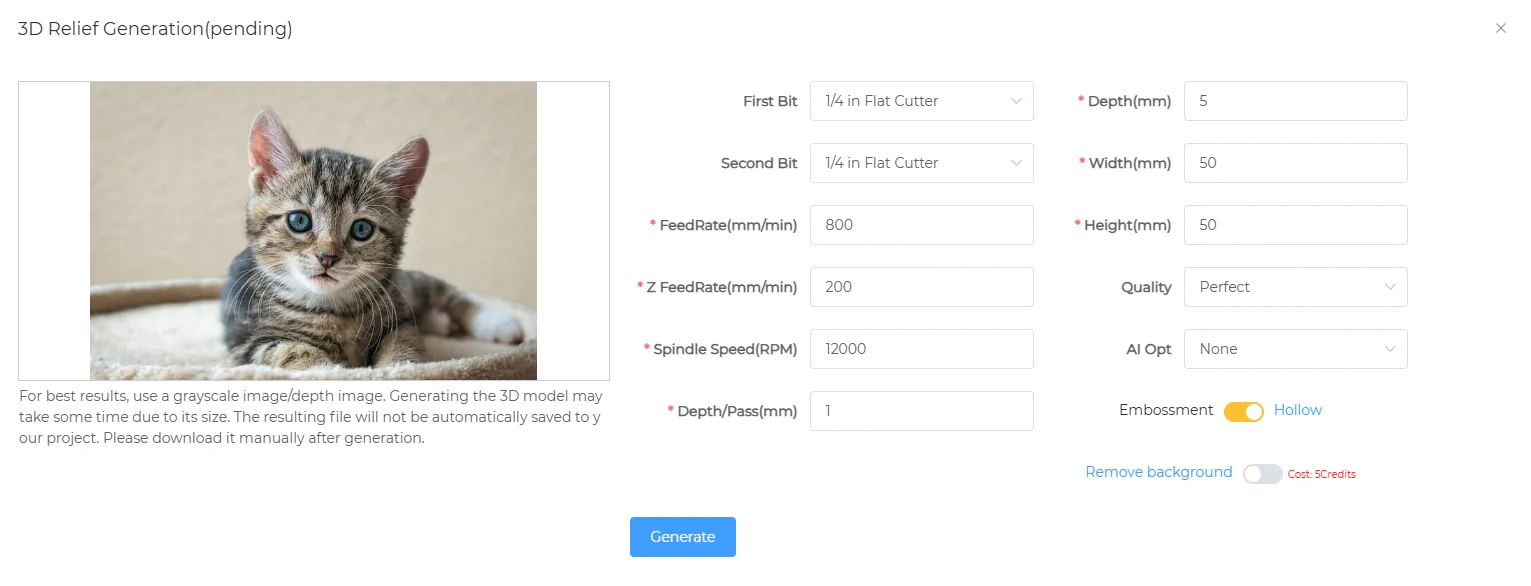
- STL parameter settings after import:
- Quality: Efficient / Normal / Good / Perfect
- Embossment / Hollow: Choose between relief or hollow
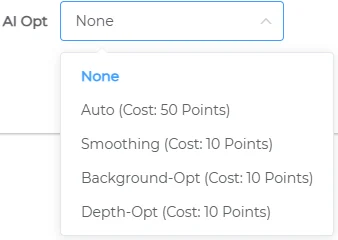
- None / AI Enhance: Enable AI enhancement to optimize relief quality