Driver Configuration
Updated 2026-09-14
System Requirements 🖥️
Before installing and using the driver, please ensure your system meets the following requirements:
- Operating System Support:
- Windows 10 / 11 (64-bit)
- macOS 11 and above
- Hardware Requirements:
- At least 4 GB RAM
- USB 2.0 or higher interface
- SSD storage recommended to speed up data transfer
- Network Requirements:
- Stable internet connection
- Display Resolution:
- 1080p or higher recommended for the best interface experience
The current version does not support Linux systems. For Linux support, please follow future version updates.
Supported Machine Models and Firmware 🛠️
The following device models have been verified as compatible with the driver:
🧱 CNC Series
- 3020 Nova
- 3018 Pro Max
- 3018 Pro Ultra
- 4040 Turbo
- 4040 Titan
- 1325 Pro
🔥 Laser Series
- 4040 Lite
- 4040 Pro
In addition to the above models, the driver also supports other devices using the GRBL protocol. Please ensure the control board is connected via serial port and running standard GRBL firmware (recommended version ≥ 1.1).
Detailed Installation Steps 📦
Driver installation consists of the following three steps:
- Download the driver
- Install the driver
- Verify the installation result
Download the Driver
See Download Center
Install the Driver
Windows Installation Process
- Double-click to run the driver
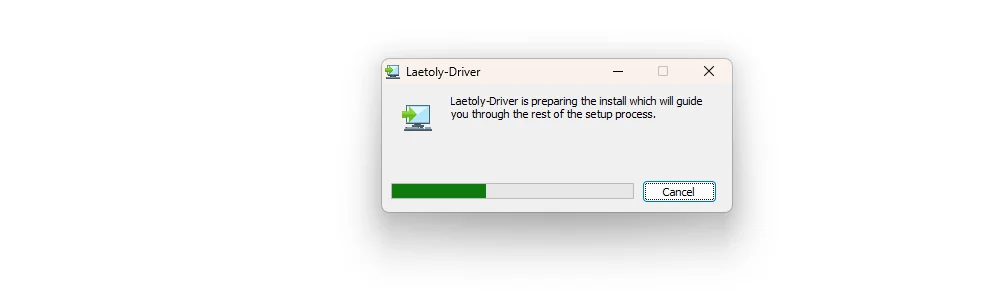
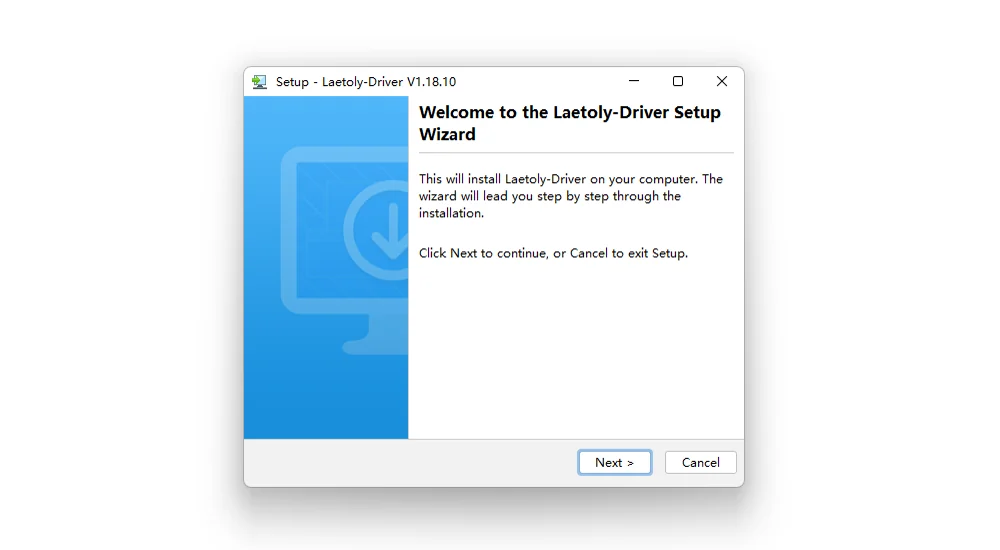
- Follow the installation wizard and click “Next”
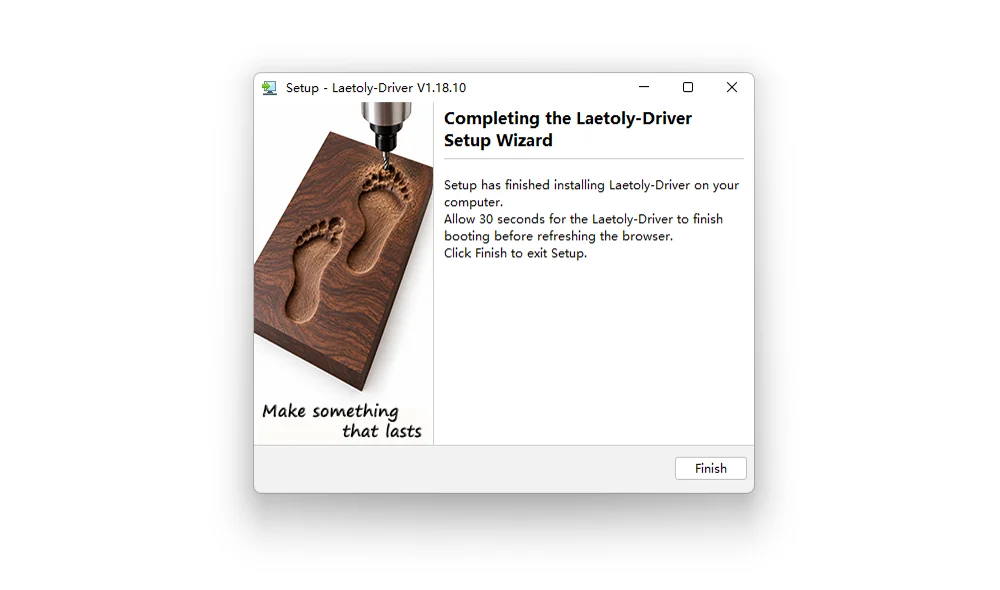
- After installation is complete, click “Finish” to launch the driver
macOS Installation Process
- Double-click to open the installer package
- If a security prompt appears, follow these steps to allow installation:
- Click the Apple menu in the top-left corner and select System Settings
- In the sidebar, click Privacy & Security
- In the “Security” section, click Open
- Click Open Anyway
- Enter your login password, then click OK
- Reopen the installer package, wait a few seconds, then click Next in the installation interface
- After installation is complete, click Finish to launch the driver
Verify Driver Installation Success
- Log in to Laetoly
- Wait a few seconds, the page will display the following prompt, indicating Laetoly has successfully connected to the driver:
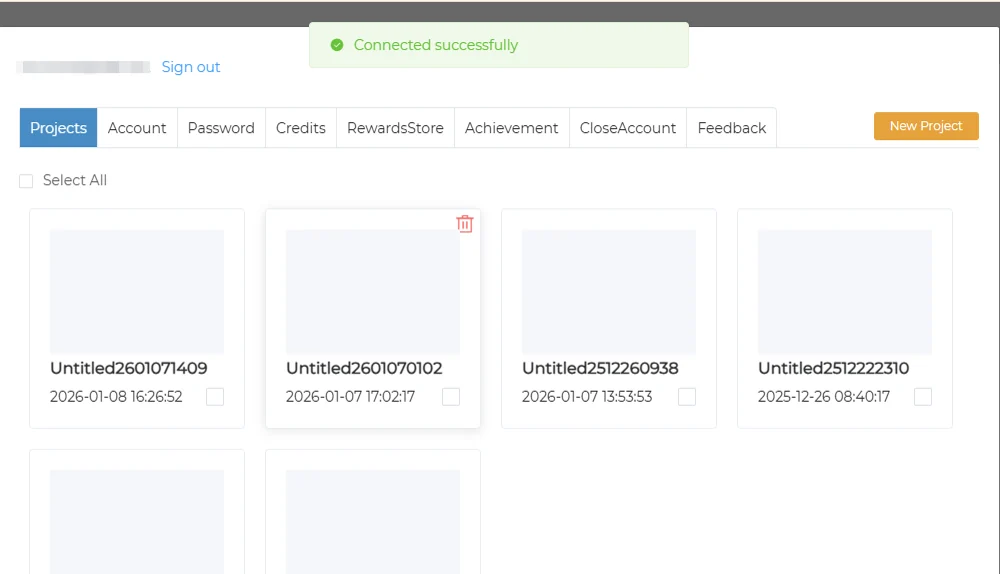
✅ If verification fails, please refer to Installation & Setup.
USB Driver and Port Configuration
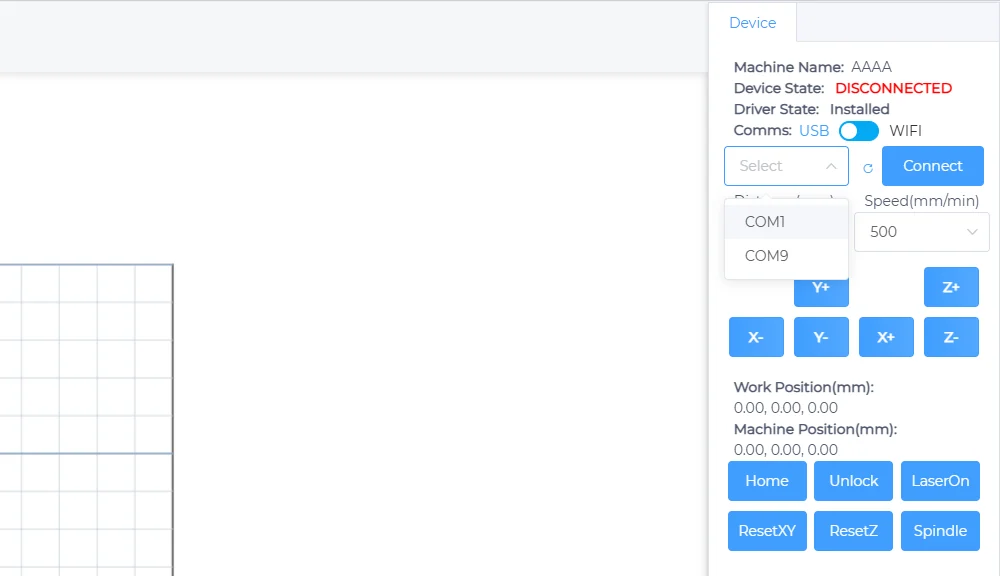
After installing the driver, Laetoly will automatically detect and list the available serial port devices on your system.
If you encounter device connection or driver installation issues, please refer to Installation & Setup.
Windows
On Windows 10 or 11 systems, serial port names usually start with COM, such as COM3, COM5, etc.
As shown below:
macOS
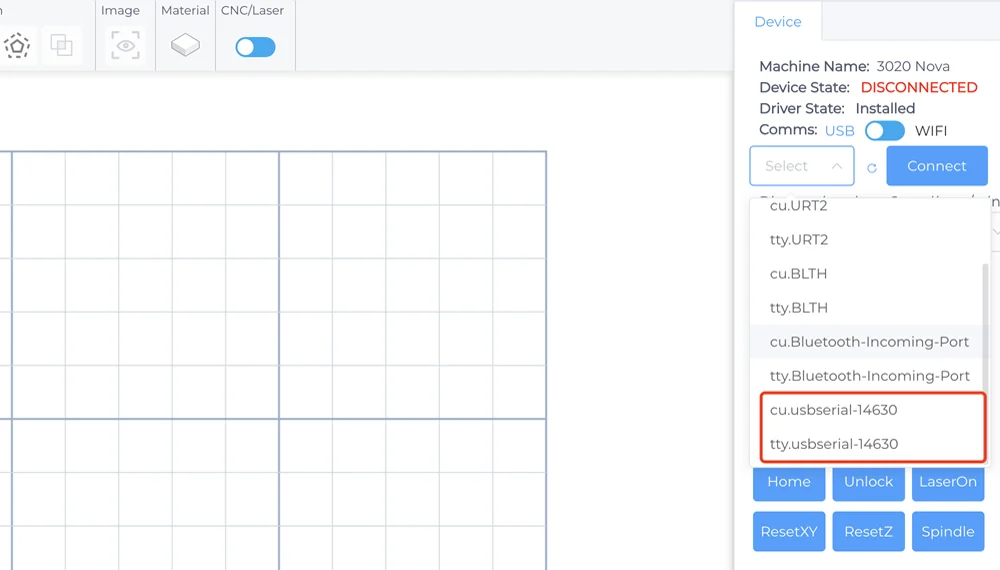
On macOS systems, serial port names usually start with cu. or tty., common formats include:
cu.usbmodem*tty.usbmodem*
These serial port names can be automatically recognized and listed in Laetoly’s device connection interface. As shown below: