
3D Preview
Updated 2026-09-14
Laetoly’s 3D Preview feature is designed to help users:
- View the workpiece to be carved from a 3D perspective
- Automatically generate toolpaths that match the workpiece
- Provide an entry point to start the carving task
This feature supports path verification and parameter adjustment (see Preview Area later in this document), and offers an intuitive task simulation experience before machining.
✏️ Generate Toolpath
After completing the graphic design and parameter settings on the canvas (see drawing-tools and importing), click the Preview button in the top menu to enter the 3D preview interface. Then click the Generate Toolpath button, and the system will automatically calculate and generate the toolpath. As shown below:
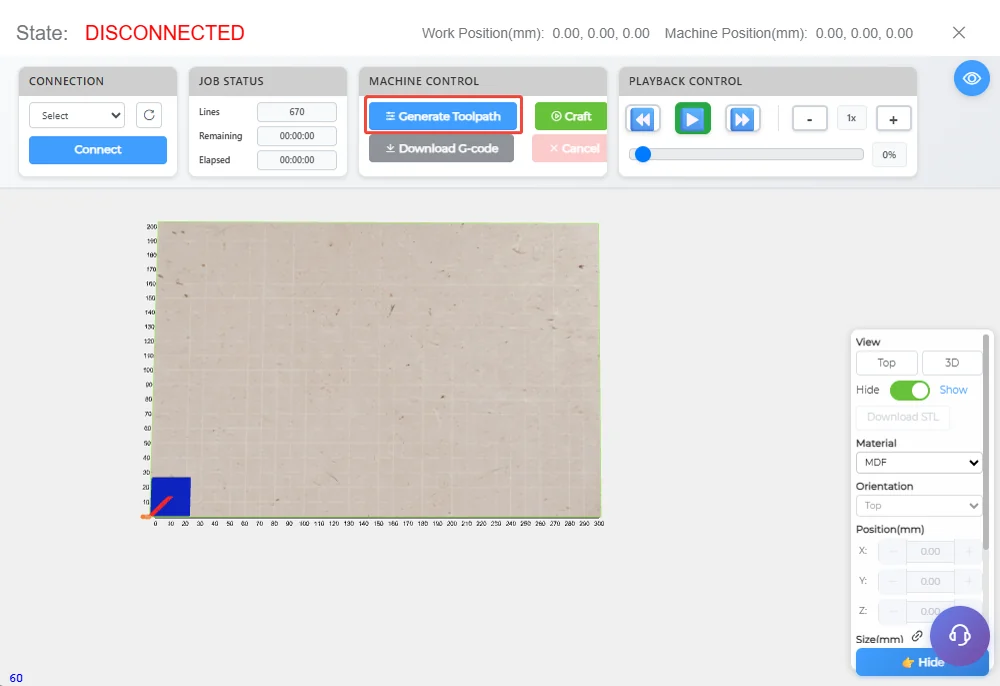
Note: If the user imports a G-code file into the canvas, the system will directly enter the 3D preview interface, and the Generate Toolpath button will not be available.
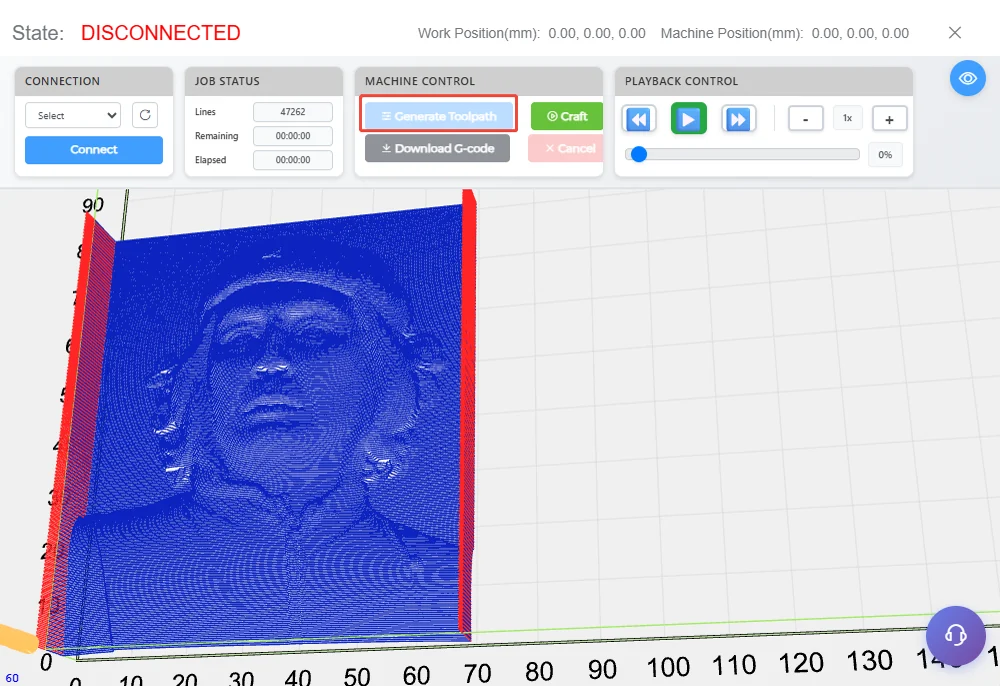
🧊 Toolpath Simulation and 3D Preview
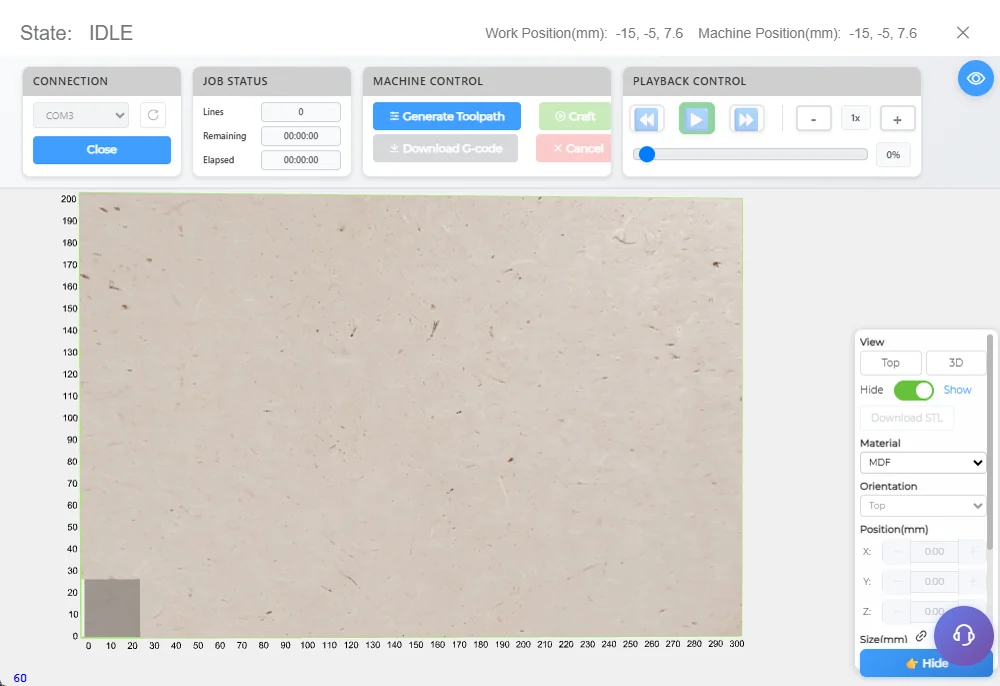
The 3D preview interface of Laetoly integrates key functions such as task monitoring, path simulation, model interaction, and parameter configuration, helping users fully understand the workflow and expected results before machining.
Overview of the interface:
🧩 Machine Information Area
Located at the top of the 3D preview interface, this area displays the real-time status of the device, allowing users to quickly confirm the machine’s condition before or during carving. Supported device states include:
- DISCONNECTED: Device not connected
- IDLE: Device connected but idle
- RUN: Device is executing a carving task
- JOG: Device is in manual movement (JOG) mode
- HOLD: Task paused, device in hold state
- ALARM: Device triggered an alarm, error information needs to be checked
Example interface:

🧭 Control Panel Area
The control panel integrates the following modules:
| Module | Description | |-------------------|----------------|-------------| | Job Status | Displays task line count, remaining time, and elapsed time | | Machine Control | Controls path generation, task start, G-code export, and cancel | | Playback Control | Controls path animation playback, fast forward/rewind, speed adjustment, and progress display | | Display Options | Sets path color schemes, switches between roughing and finishing display |
📊 Job Status Area
Displays the execution progress of the current carving task, including line count, remaining time, and elapsed time. Once the task starts, only the “Pause” and “Cancel” buttons are available; other operations are disabled.

🛠️ Machine Control Area
Includes the following buttons:
- Generate Toolpath: Generate toolpath (disabled when the device is carving or Laetoly is not connected to the driver)
- Download G-code: Download the generated G-code file (available only after successful path generation)
- Craft: Start the carving task (requires both “path generated” and “device connected”)
🎞️ Playback Control Area
Used to control the execution state of path animation or actual carving tasks, with two modes:
Real-time Carving Mode
Only “Pause / Resume” buttons are available, others are disabled:
- Pause carving: Device enters
Holdstate
- Resume carving: Release
Holdstate and continue machining
Simulation Preview Mode
The following functions are available to control animation playback:
- Rewind / Fast forward
- Play / Pause
- Playback speed adjustment
- Progress percentage display
🎨 Display Options Area
Used to adjust the visual style and display mode of toolpaths, including:
- Path Color Scheme Switching
Users can choose different path color schemes to improve visibility or adapt to different backgrounds. Options include:Default,Blue-Orange,High Contrast,Neon,Industrial - Machining Stage Path Switching
After successfully generating toolpaths, the system defaults to showing the roughing path, as shown below: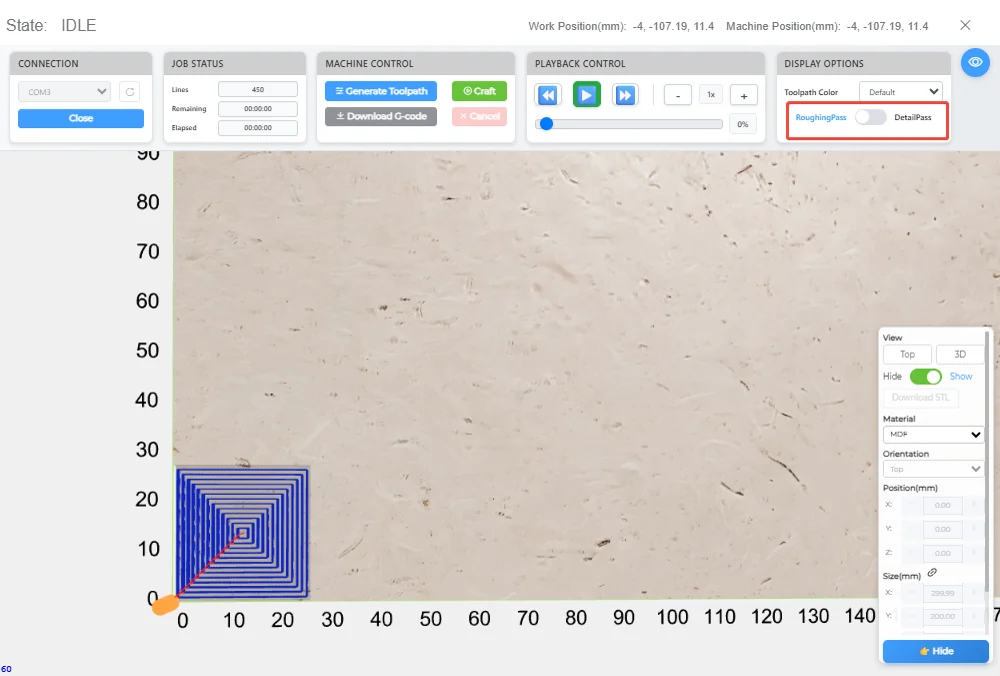
Clicking the switch button will change the display to the finishing path: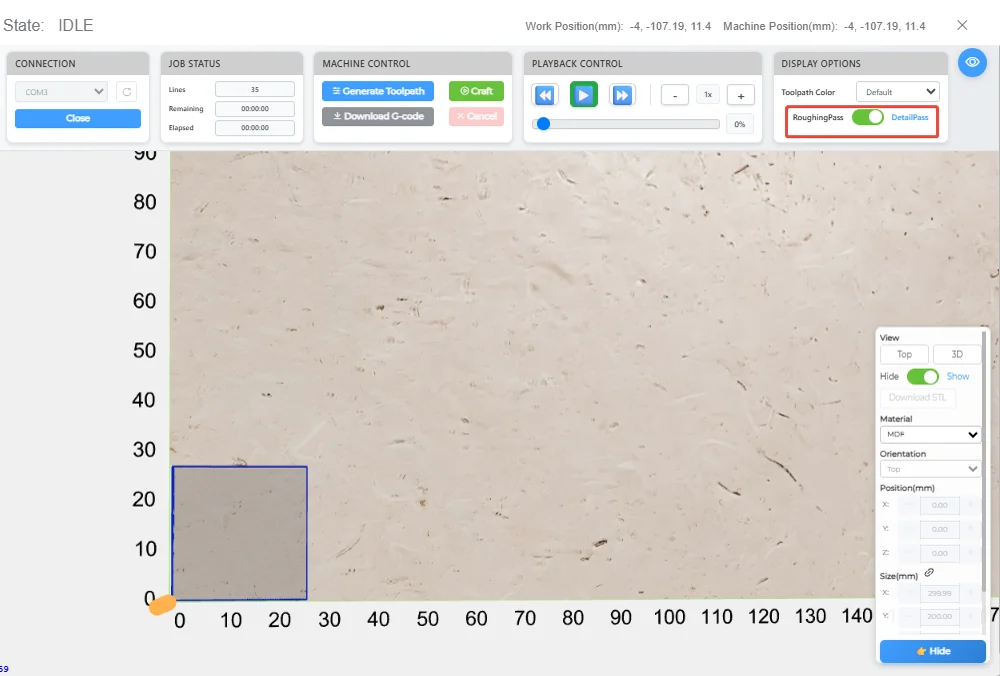
⚠️ Note: The roughing/finishing switch button is only enabled if two tools were set during the design stage and two paths were successfully generated.
🧱 Preview Area
In the preview area, Laetoly displays the workpiece and toolpaths, supporting both static viewing and dynamic animation, helping users fully understand the machining path before processing.
In 3D model mode, the system supports the following interactions:
- Pan: Hold the right mouse button and drag to adjust the view position
- Rotate: Hold the left mouse button to rotate the model around the central axis
- Zoom: Scroll the mouse wheel to zoom in or out for detail or overall view
To ensure carving quality, the right side of the preview area provides a set of parameter settings. Overview:
| Parameter Name | Description | Applicable Scene |
|---|---|---|
| Material | Specify the visual or machining material of the model | 2D & 3D |
| Download STL | Download STL file, available only after generating a model from a relief image | 3D |
| Orientation | Set model rotation direction (Top, Front, Left, etc.) | 3D |
| Position (mm) | Set model position coordinates (X/Y) in the material | 3D |
| Size (mm) | Set model size (width, height) | 3D |
| Frame Type | Specify border processing (Frameless or with tabs) | 3D |
| Hide | Show or hide parameter panel for focused viewing | 2D & 3D |
Material
Specifies the visual or machining material of the model. Options include:
| Category | Option Name | Description |
|---|---|---|
| Heightmap Schemes | HeightMap(Dark) | Dark tone height difference simulation |
| HeightMap(Rainbow) | Rainbow tone height difference simulation | |
| Wood Textures | Wheat | Light wheat wood texture |
| Light Oak | Light oak texture | |
| Camel | Camel wood texture | |
| Peru | Dark camel wood texture | |
| Dark Oak | Dark oak texture | |
| Saddle Brown | Saddle brown wood texture | |
| Dark Walnut | Dark walnut texture | |
| Other Surface Textures | Leaf | Leaf texture |
| Leather | Leather texture | |
| MDF | Medium-density fiberboard (recommended for carving) | |
| Pine | Pine wood texture |
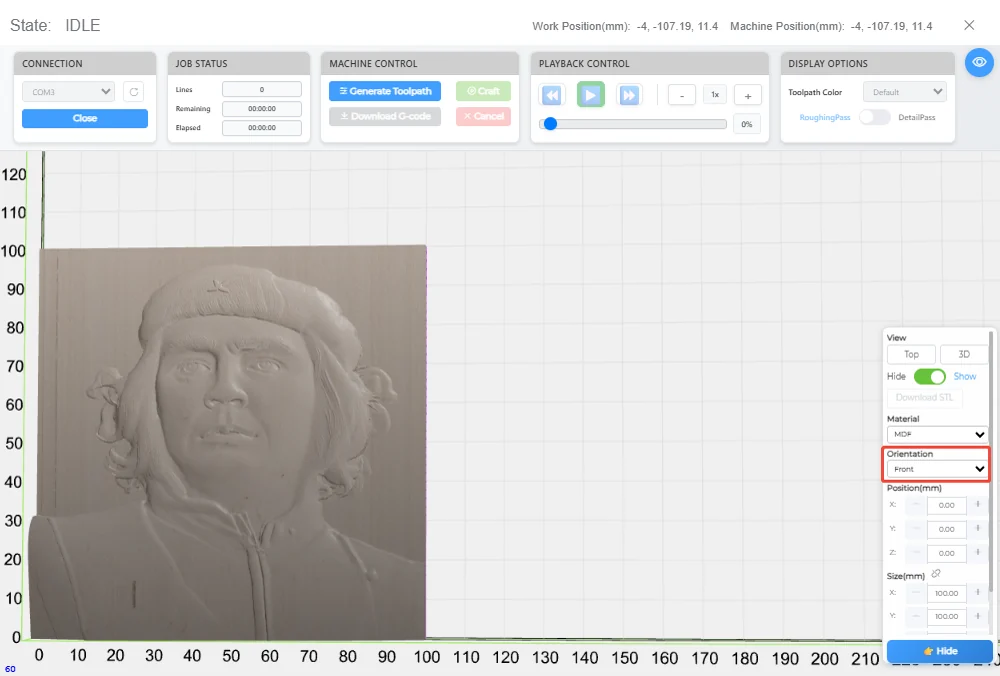
Orientation
Default is Top, can be switched to Bottom, Left, Right, Front, Back to adjust the final carving effect.
Position
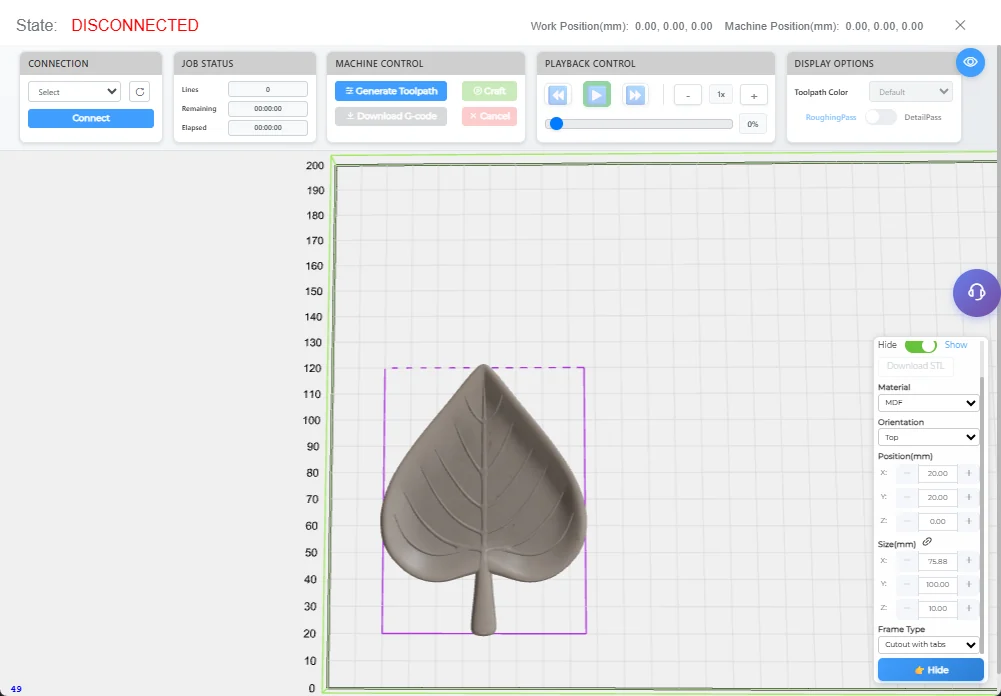
Adjusts the model’s position within the material.
Size
Sets the model’s width and height, e.g.:
- Position:
X=20, Y=20 - Size:
Width=100, Height=100
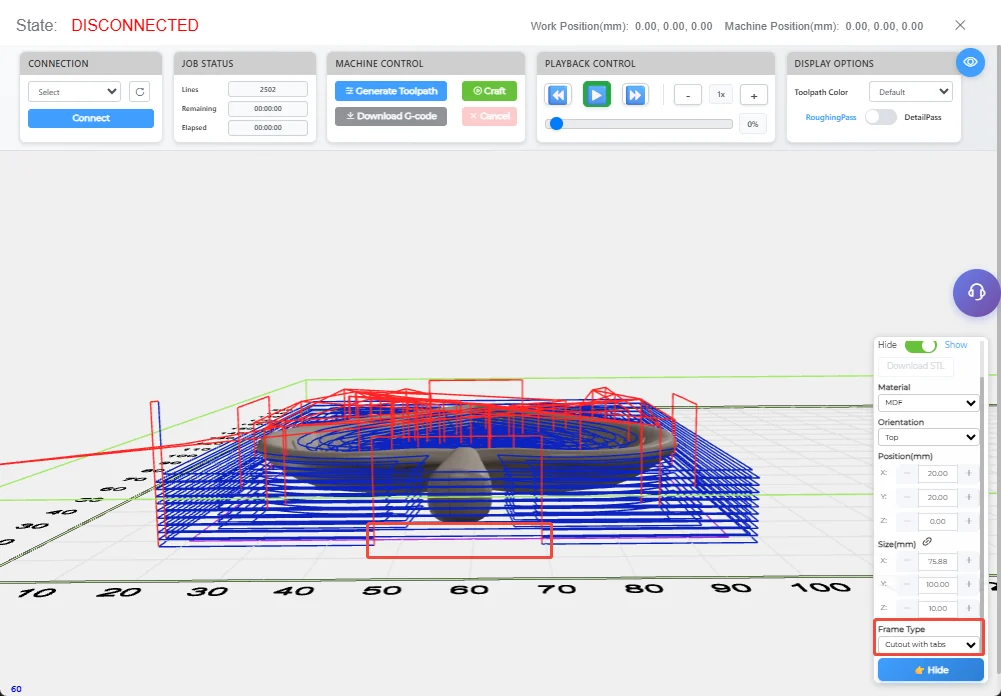
Frame Type
Specifies border processing:
Frameless: Completely cut out the borderCutout with tabs: Automatically retain positioning tabs
Hide
Hides all current settings for focused viewing of the model or path.
📤 Export G-code File
After confirming the path is correct, export the task as a standard G-code file:
- Click the Download G-code button
- Supports saving as
.gcodeformat - The file can be executed directly in Laetoly or imported into the system for delayed machining.